
We’re excited to announce one of the most requested and impactful features in ConvertForce: Display Conditions.
This new addition gives you complete control over when and where your conversion bars, popups, and notices appear across your WordPress site.
Until now, ConvertForce campaigns displayed globally by default. But with Display Conditions, you can target visitors with precision – based on categories, tags, pages, posts, templates, archives, and more.
This means smarter targeting, higher engagement, and better conversions.
Let’s take a look at what’s new.
Show or Hide Campaigns Based on Conditions
At the heart of this update is the ability to Show On or Hide On specific parts of your site.
Once you open the Display Conditions panel, you can choose whether ConvertForce should:
- Show a campaign only on selected areas
- Hide a campaign from selected areas
- Add unlimited conditions for granular control
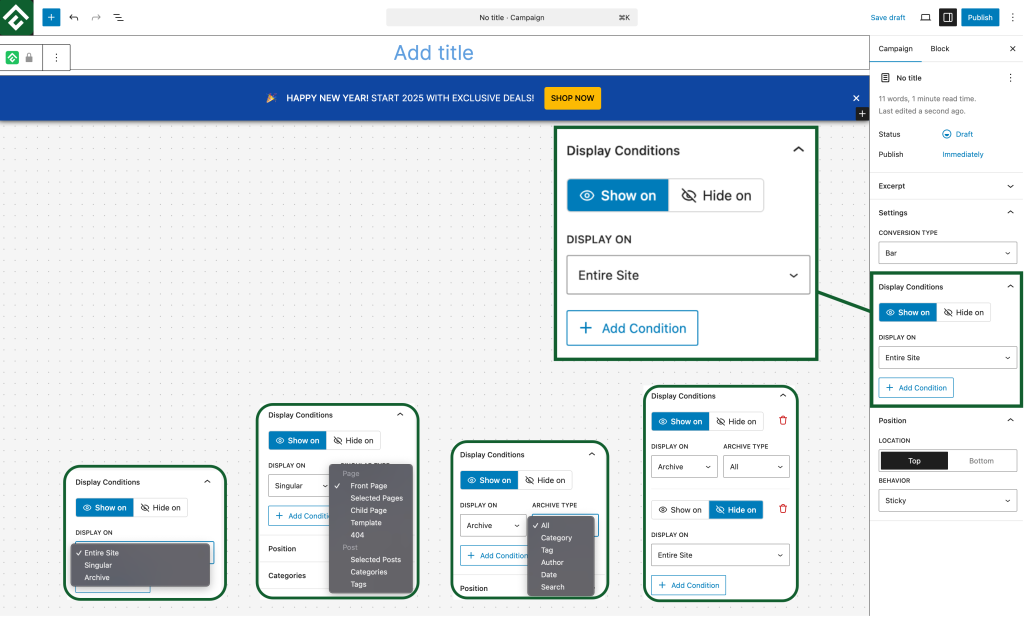
This makes campaign behavior fully flexible without any coding.
Target by Archive Types
You can now target visitors based on archive pages, such as:
- Categories
- Tags
- Author archives
- Date archives
- Search results
- Or apply to All Archives
For example:
✔️ Show a free-shipping bar only on your Plugins category
❌ Hide a promotion from Tag archives
✔️ Show a notice only on Search result pages
The category selector allows you to pick multiple items—helping you refine your targeting even further.
Target Singular Pages & Posts
Beyond archives, ConvertForce now lets you control visibility on individual pages and posts with advanced singular options.
You can target:
Pages
- Front Page
- Selected Pages
- Child Pages
- Template-based Pages
- 404 Page
Posts
- Selected Posts
- Categories
- Tags
Example use cases:
✔️ Hide a coupon bar on your pricing page
✔️ Show a lead magnet popup only on blog posts
✔️ Display a notification only on a specific landing page
Display Across the Entire Site (or Exclude Specific Areas)
If you prefer simpler targeting, you can still apply a campaign to the Entire Site—then use “Hide On” rules to exclude any pages where the message is not relevant.
This gives you powerful “include + exclude” flexibility.
Add Unlimited Condition
Every condition block includes an Add Condition button, allowing you to stack multiple rules.
For instance:
Show On → Category Archive → Plugins
Hide On → Selected Pages → Checkout, Cart
This is perfect for WooCommerce sites that want to promote offers but avoid interrupting checkout sessions.
Clean UI, Seamless Workflow
The new Display Conditions panel is built directly inside the block settings sidebar, keeping everything intuitive and native to the Gutenberg experience.
Switch between Show/Hide, choose condition types, and select categories/pages—all without leaving the editor.
Why This Matters
The right message, shown at the right place, converts significantly better.
With Display Conditions, ConvertForce becomes far more powerful for:
- Bloggers
- Affiliate marketers
- WooCommerce stores
- Service businesses
- SaaS landing pages
- Content creators
Whether you want to show a free-shipping bar only on product pages or run category-specific announcements, ConvertForce now gives you full control.
Available Now in ConvertForce
The Display Conditions feature is now live for all ConvertForce users.
Update your plugin to the latest version and start creating more targeted, higher-converting campaigns today.
Have feedback or suggestions? We’d love to hear from you as we continue improving ConvertForce.
Leave a Reply